
Contents
§ 01
A customer sends you their security questions
A new customer's IT lead sends you a list before they sign. You want to answer every line honestly, without guessing what the software does.
Here is how AI Admin Panel handles access, secrets, AI requests, backups and updates. Where your own setup decides, we say so.
§ 02
Who can see and do what
Your customers want to know that nobody else can open their apps. Your team wants to know who changed what.
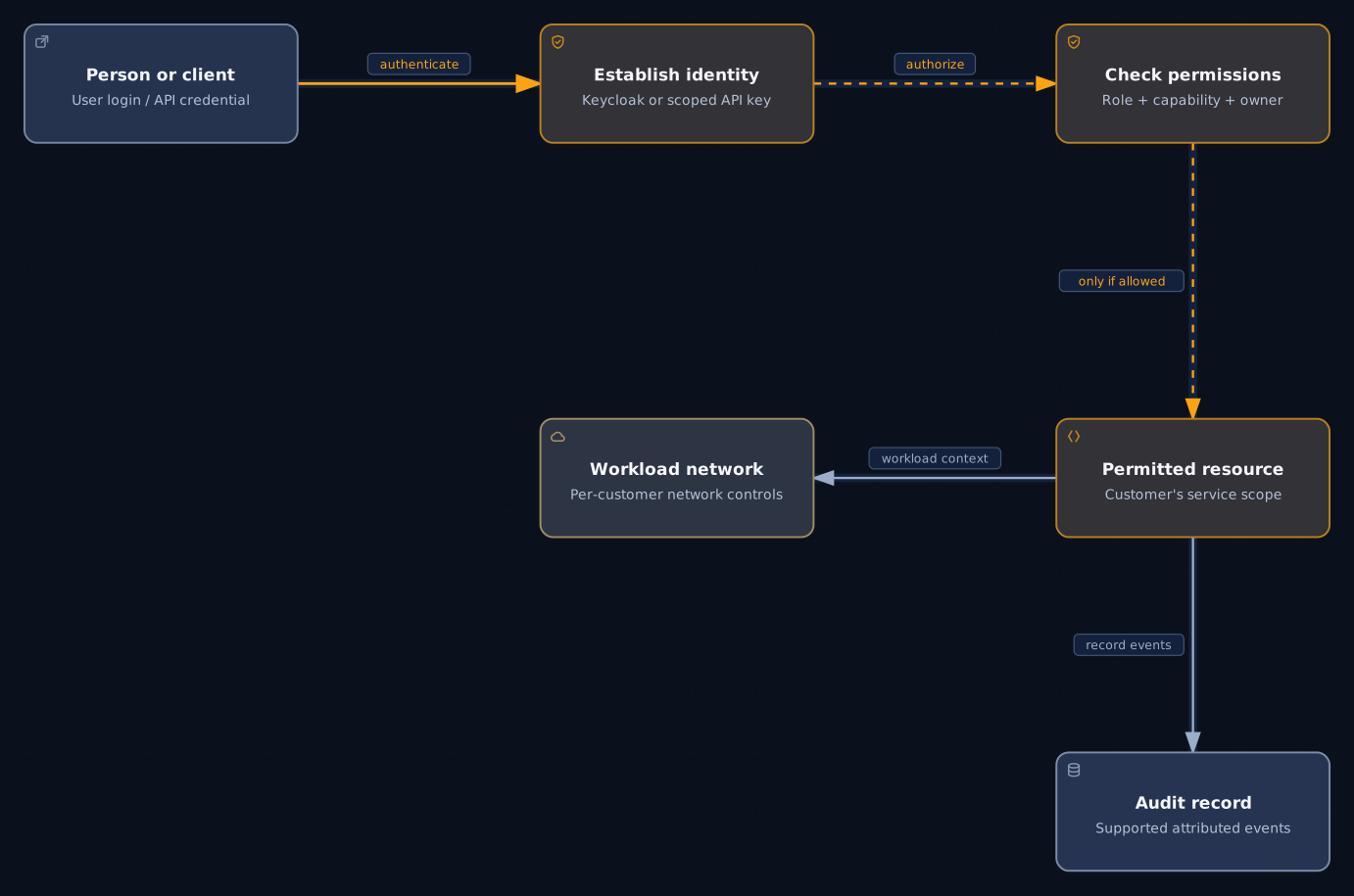
Everyone who uses the panel in a browser signs in through Keycloak. Each person can turn on two-factor sign-in with an authenticator app.
Customers sign in to their own portal and see only their own apps. They get the portal actions their plan and role allow. Optional features start switched off, such as their own AI key, API keys and MCP. You switch them on for all customers or for one. In the Web Host edition, plans and roles set what each customer may do.
On every request, the panel checks the person's role and what they own before anything opens or changes. Server-level tools stay with your team.
 Open full size
| Support without passwords | When a customer calls, staff you allow can view the portal as that customer. Nobody has to ask for the customer's password. |
|---|---|
| Two-factor resets | If a customer loses their authenticator, your team can reset it. The reason goes into the audit log. |
| Suspending a customer | Suspend a customer, and their sign-ins, API keys and MCP access are blocked until you reactivate them. Their key for your metered AI keeps working during a suspension. |
| Roles and resellers | Fine-grained roles, organisations and resellers come with the Web Host edition. Nobody can give a role more rights than they hold themselves. |
| The audit log | Filter supported events by person, action, resource and date, and export the view as a CSV file. |
§ 03
Apps start private
Some apps start with a default password, or make the first visitor their administrator. You want nobody outside to find them first.
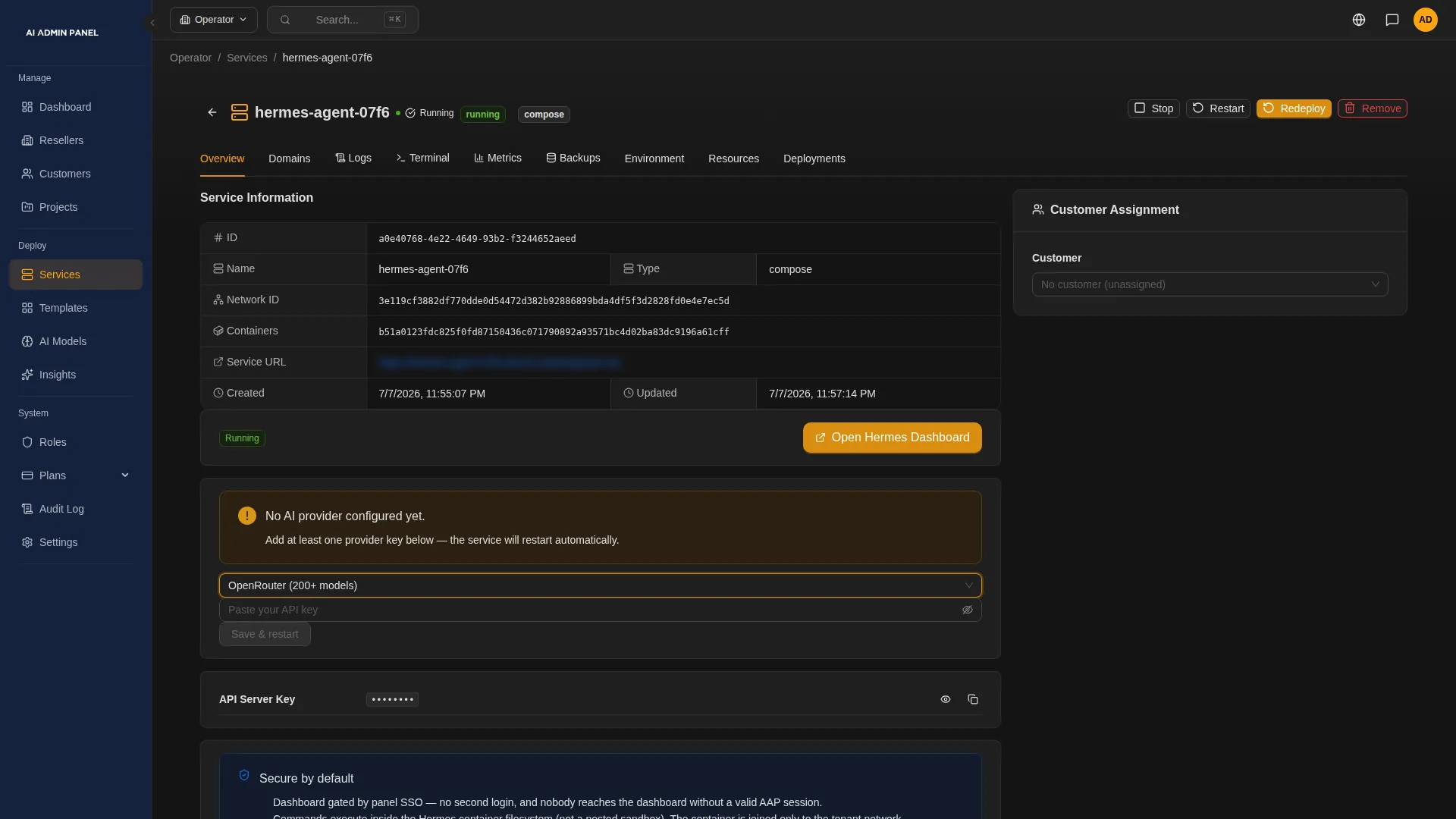
Since version 2.15, new apps start private. Only people signed in to your panel can open them. For some apps, such as WordPress and Gitea, the panel also says what to set up before you publish.
You publish an app when it is ready, and publishing can't be undone yet. Some templates declare their own exceptions. Hermes Agent, IronClaw, OpenHands and the four coding workspaces always stay behind the panel's sign-in, and RustFS starts public. Apps from before version 2.15 keep the access they had.
Note
Private apps use the panel's sign-in. Some apps also ask for their own login, and inside each app, its own settings apply.
§ 04
Inside your server
Each customer's apps share a network of their own, separate from other customers. Apps from before version 2.14 need a redeploy to move onto it. The panel lists the apps that haven't moved yet. A few shared services, such as local models, have their own rules.
The panel starts app containers with reduced privileges, and it refuses settings that would give an app control of the server. Older containers get them when they are recreated, and one template, BookStack, has a documented exception. Building an image from a repository still runs with Docker's default settings.
It also blocks customer apps from known cloud metadata addresses and limits their traffic to the server itself. New installs since version 2.15 get these guards. Older servers get them once the installer's updater is refreshed. They cover IPv4, and part of them needs Docker 28 or later.
§ 05
Secrets and stored passwords
Nobody wants a customer's database password sitting in a note on a laptop.
OpenBao keeps app passwords, AI keys and customer tokens encrypted, in separate compartments for the platform and for each customer. Other secrets, such as environment variables and Git deploy keys, are encrypted in the panel's database. The panel and the server itself remain trusted parts of the system.
When someone reveals a stored app password in the panel, the audit log records it. You can rotate supported secrets from the panel. The panel recreates the app with the new value, and other apps that use it may need a redeploy.
Passwords for connected services, such as your mail server, are write-only. You can replace or remove them, and the panel doesn't display them.
§ 06
Scripts, AI tools and the assistant
You want scripts and AI tools to help, within the limits you set.
| API keys | Each key works with its own role, for its organisation and the ones below it. Give it an expiry date, and revoke it at any time. The full key is shown when you create it. A customer's key can be shown again later, and each reveal goes into the audit log. |
|---|---|
| MCP for your team | Admin access is off until you switch it on in the settings. Each request then needs an admin API key. |
| MCP for customers | It covers a smaller set of tools, for customers you allow, and it starts switched off. Admin keys and customer tokens can't stand in for each other. |
| The assistant in the panel | It shows what it is about to change and waits for a person to approve it. |
Note
Only the assistant in the panel asks a person to approve a change. API and MCP calls go straight to the permission check.
§ 07
Where AI requests go
Customers want to know where their prompts and documents go when they use an AI app.
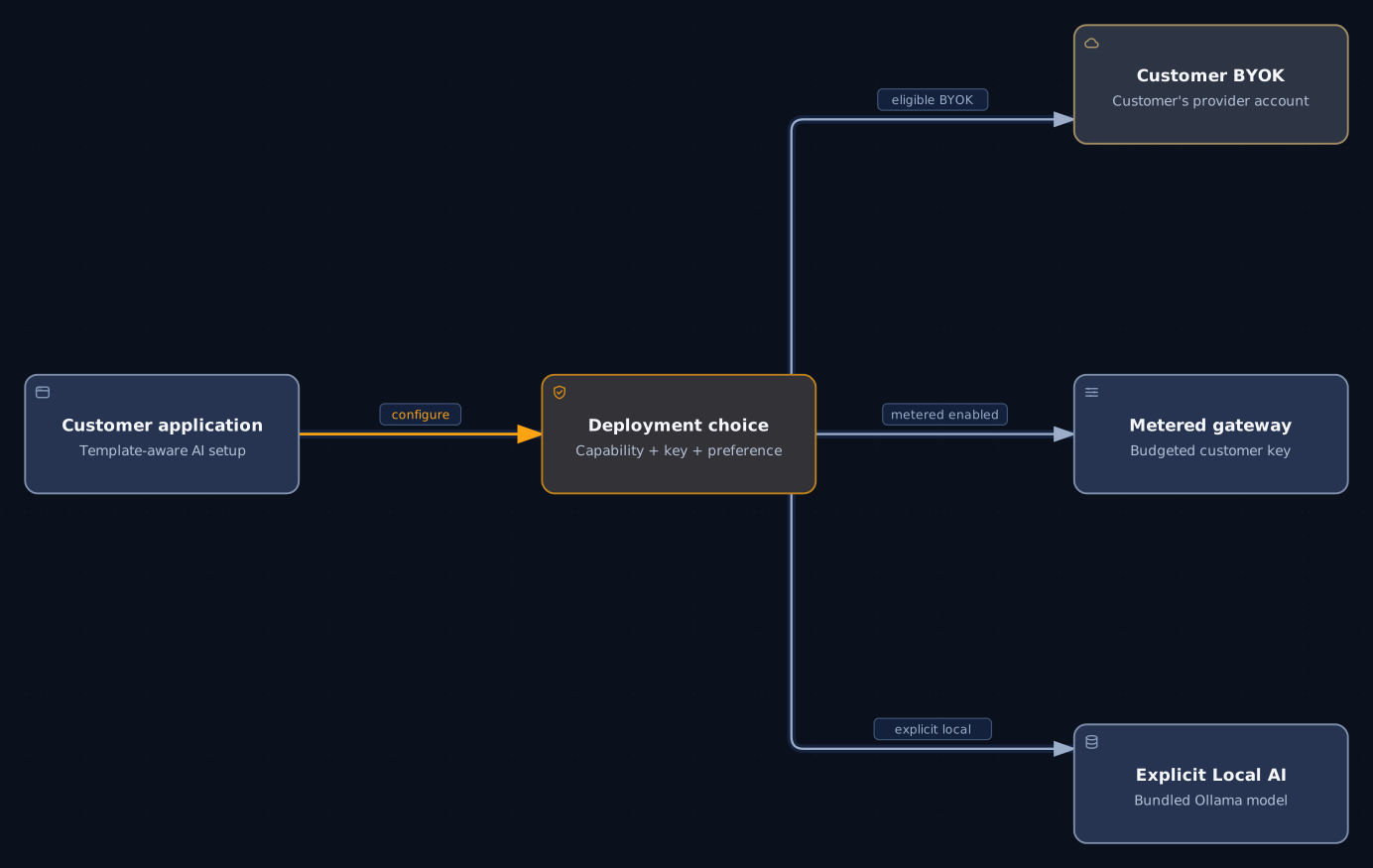
For apps that support it, you choose the AI route when you deploy. It can be the customer's own key, your metered key with a monthly budget, or a local model. Other apps take an AI key in the deploy form or set their AI provider inside the app, so check each one.
With an outside provider, the app's AI requests go to that provider. A local model keeps them on your server.
The assistant and AI Deploy need an AI provider set up in the panel. If that provider is outside your server, what they read goes to it.
 Open full size
§ 08
What else leaves your server
The apps and their data run on your server. These things contact services outside it.
- Licences. Checking and activating a paid licence contacts our licensing service.
- Updates. The panel checks for a new version every day. Updates and app images are downloaded from outside your server.
- Code and models. Deploying from Git fetches the code from its host, such as GitHub or GitLab. Downloading a local model fetches it from the model's registry.
- Profile pictures. The panel shows each user's profile picture from Gravatar. To get it, the browser sends Gravatar a code made from the user's email address. Users without a Gravatar picture see their initials.
- Usage statistics. The licence agreement lets the panel send us data such as its version, its licence key and counts of customers and services.
- Certificates and DNS. Let's Encrypt issues the certificates. If you connect Cloudflare DNS, the panel asks it to create records. Without a domain of your own, our domain service gives you a temporary address and points it at your server. To keep it beyond the first seven days, you confirm an email address with that service.
- AI, email, backups and notifications. Each one goes to the provider you set up.
- Chat apps. Any chat app you connect to an agent carries its messages.
- Each app's own connections. An app can connect to outside services through its own settings.
Our documentation describes the panel's main connections.
§ 09
Backups and recovery
You want to know what a backup covers before a customer needs it.
| What backups capture | The panel backs up PostgreSQL databases, and the stored files of apps that have no database. Other database engines are refused. Backing up an app's files stops the app until the backup is done. |
|---|---|
| Where they go | Run a backup by hand or on a schedule, to an S3-compatible bucket you choose. Backups to S3 need Power User or Web Host. |
| What the panel restores in version 2.17.0 | Full restore covers one setup: a small Directus app on PostgreSQL 16 that is not assigned to a customer. Its data can be up to 256 MiB. The panel refuses apps that belong to a customer. Database and file backups are kept as stored copies, with no restore in the panel. Our documentation shows your team how to put a database backup back by hand. |
| Before a restore | Each backup shows whether the panel can restore it, and if not, the reason. When it can, the panel checks the backup and saves the current data as a safety snapshot first. The app is offline while it restores. |
| Rollback keeps today's data | Rolling back an app changes its version and leaves its data as it is. |
| The panel's own data | The installer sets up a nightly copy of the panel's databases and secret store, in a folder on the same server. It covers the panel itself, and your customers' apps are not in it. The copies stay on the server, and the database copies are not encrypted. Copy them to a safe place yourself, and keep the panel's key files in a separate place. Servers installed before version 2.15 get the nightly copy once the installer's updater is refreshed. |
Full restore, for the one supported setup
Check the setup.
The panel looks at the app's owner, its storage and its database.
Take a full snapshot.
You take it by hand, and it captures the database and the files together.
Check that it can restore.
A platform administrator starts the restore, and the panel checks the backup first.
Save a safety snapshot.
The current data is saved before anything changes.
Restore and check.
The panel restores the snapshot, then checks the result before it reports success.
Database and file backups
Back up the database or the files.
You run it by hand or on a schedule you set.
Keep the stored copy.
It stays in your bucket, with no restore in the panel.
Note
Backups hold your customers' data, so protect the bucket the way you protect the server.
§ 10
Updates
You want to install an update and know the panel comes back.
Updates come as signed release images. Before an update, the panel backs up its own database. If the update fails its health check, the panel tries to roll it back.
Automatic updates are off until you switch them on and choose a daily time.
Note
On a first install, the installer and the files it downloads come over HTTPS without a signature check. We don't publish a signature for the installer yet.
§ 11
What your own setup decides
The panel gives you controls. How safe your customers are also depends on the server, your team and each app.
| The server | The panel and the server itself are trusted parts of the system. Protect the server as you would any host with customer data. |
|---|---|
| Each app | Inside each app, that app's own sign-in and settings apply. |
| The audit log | It records supported events. Check that it covers what your customers ask for. |
| One panel per installation | Each installation is its own panel, with its own customers and apps. |
| The law | Whether your service meets a law or a standard depends on your whole setup. We make no legal or compliance promise. |
§ 12
Questions security teams ask
Can one customer see another customer's apps?
In the panel, each customer sees only their own apps. Each customer's apps also share a network of their own. Apps from before version 2.14 need a redeploy to move onto it.
Can customers administer everything?
No. In the panel, each customer gets the actions their plan and role allow, for their own apps. Server-level tools, backups and restore stay with your team. Inside each app, that app's own settings apply.
Does it help with data protection rules, such as the GDPR?
It gives you controls to use in your own assessment. You decide where apps run, who has access and, for apps that support it, which AI route they use. Customers can download their account and service details from their portal, as a JSON file. Data inside each app needs that app's own export. Whether your service meets the law depends on your whole setup, so we make no legal promise.